TR-20231224 // PUBLIC RELEASE
🪐 Apollo 🛸 AI Compute Cluster for the GPU Poor
- Released by
- Prayag Bhakar
- Series
- Hardware
- Release date
- Revised
- improve prose and fix grammer
- Length
- 1,690 words · 9 min · grade 7
- Subjects
- #apollo#nvidia
Hey, Prayag here. Are you GPU Poor but want your money to go further on that shiny brand new deep learning compute cluster? Well stop looking at the newest and greatest and start scavenging for used PC hardware!
1 The build
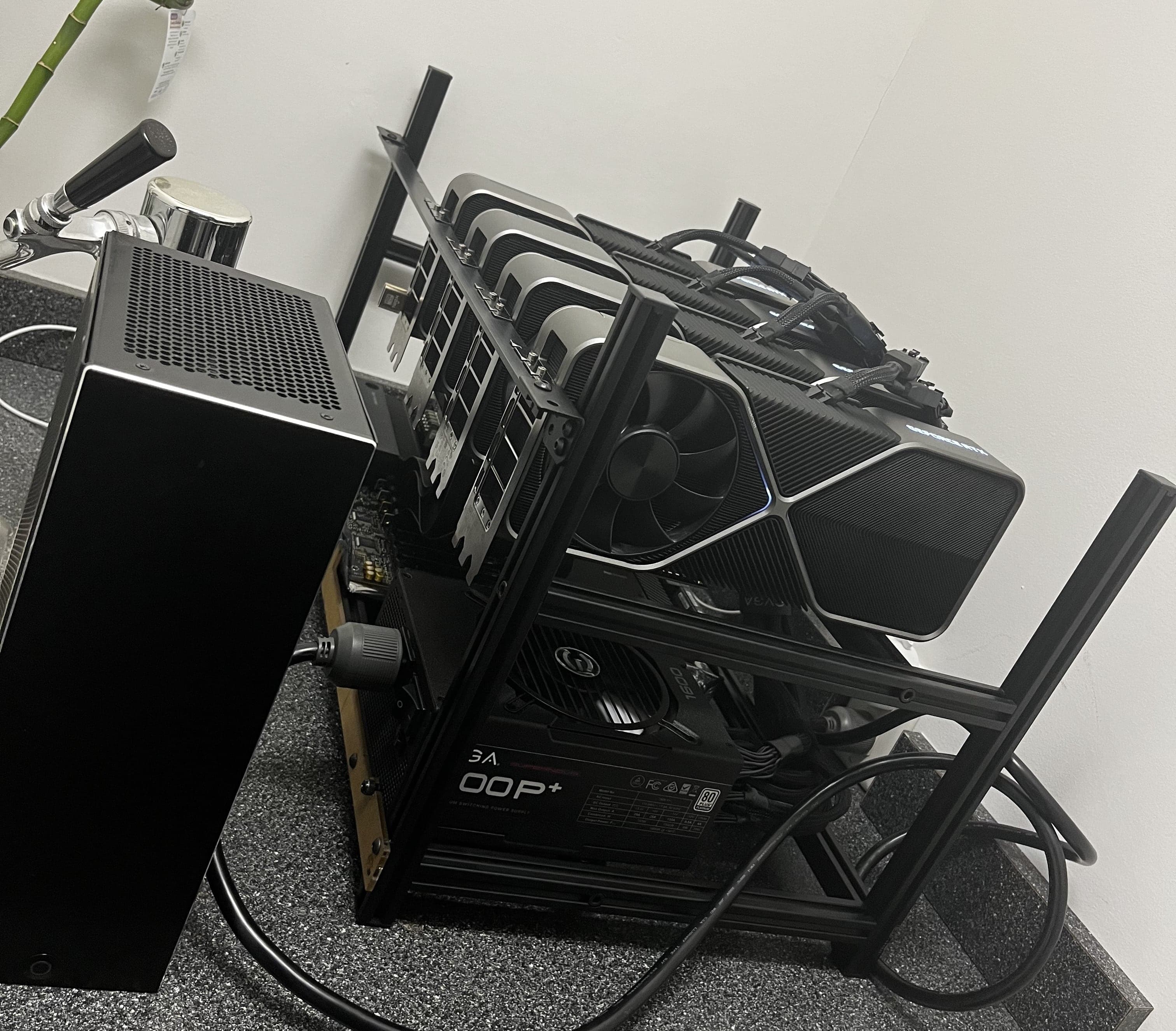
The goal is to keep the price low while getting as much Video Random Access Memory (VRAM) and compute as possible, and used hardware is the only place left with any bang for the buck. Newer GPUs and hardware keep getting caught up in the Transformer and Crypto hype. I turned to what countless other server enthusiasts have done before me: buy stuff from good old eBay.
Here's a breakdown.
| Part | Price | Notes |
|---|---|---|
| ASUS Pro WS WRX80E-SAGE SE | $620 | 2× 10G LAN, supports 4× Scalable Link Interface (SLI), plenty of SATA and IO |
| Ryzen Threadripper Pro 3945wx | $577 | Most AI workloads are GPU bound, but if you plan on using this for other server things, consider a beefier CPU. |
| CPU Cooler | $105 | |
| Samsung M386A8K40BM1-CRC | $338 | 4 × 64 GB, I also bought some aftermarket heatsinks to help keep the RAM cool. |
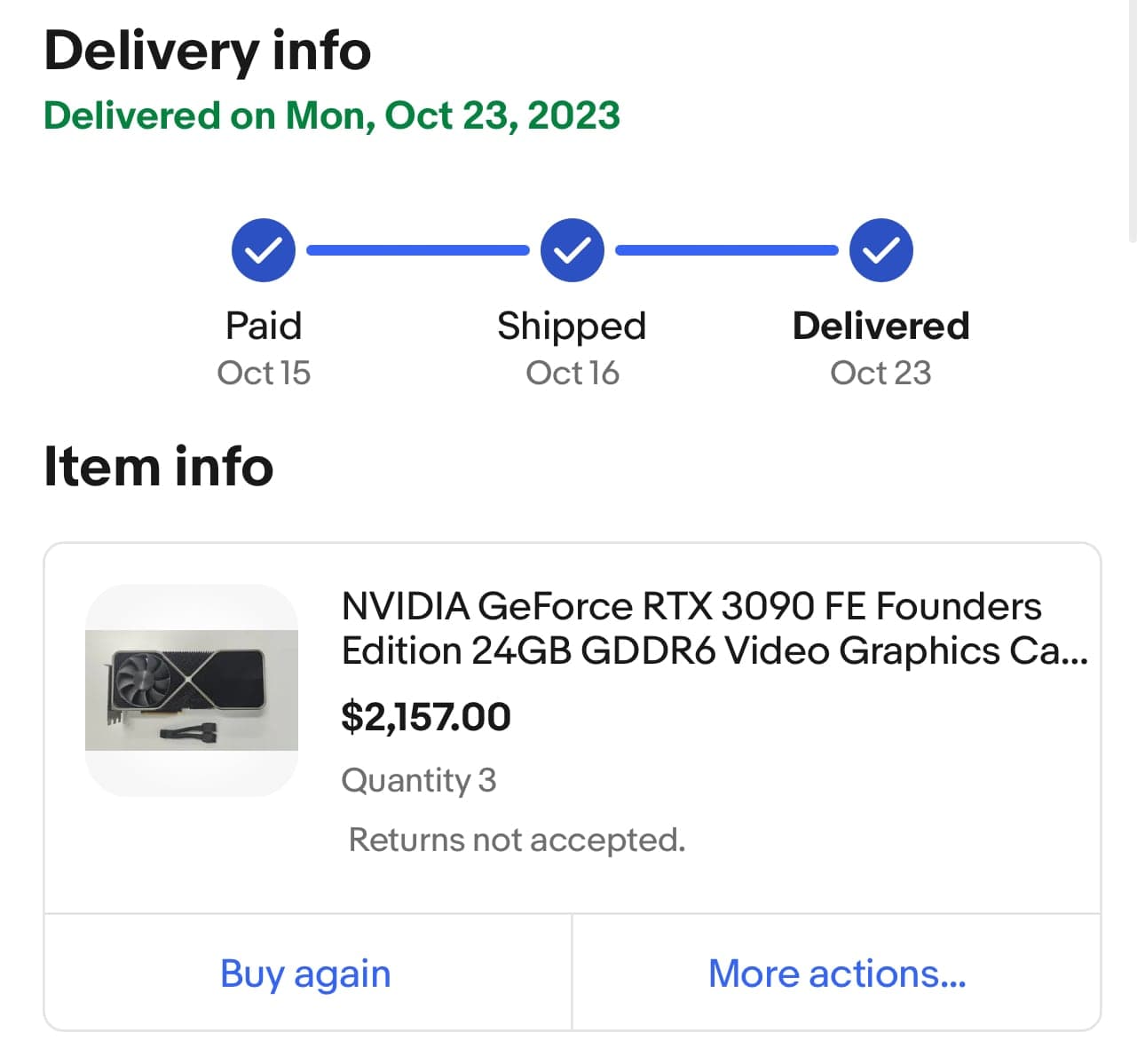
| NVIDIA RTX 3090 Founders Edition | $789 3× $772 | |
| NVLINK bridge | 2× $150 | The four-slot and three-slot bridges work best here. Depending on your GPU and cooling, you might even be able to go for the RTX A6000 and a two-slot bridge. |
| PCIE riser cables | 4× $62 | |
| m.2 to SATA splitter | $45 | |
| m.2 SSD | $75 | 500 GB, current boot drive |
| $215 | 2 TB, future boot drive | |
| Renewed Hard Disk Drives (HDD) | 6× $106 | Cheap Western Digital Ultrastar 10 TB, used and carrying PWDIS. I am using SATA power adapters to get around it, but I need to buy a fire extinguisher just in case. |
| 4× $140 | 10 TB Seagate, learned my lesson about PWDIS this time | |
| PSU | $328 | EVGA SuperNova 1600 P+ with 80+ Platinum rating to help lower the power bill. The PSU is the only big thing I bought new, since I didn't want to take any chances. |
| GPU Mining Case | $35 | the motherboard ended up not actually fitting |
| HDD Rack | 2× $35 | |
| Cables + Zip ties | $140 |
The whole build came to about $7,000 after taxes and delivery fees. That nets 24 threads with 256 GB of RAM and 96 GB of VRAM on top of 60 TB of usable storage in Raid 6. AND it's compact enough to fit in the closet if given enough ventilation.
2 Setup
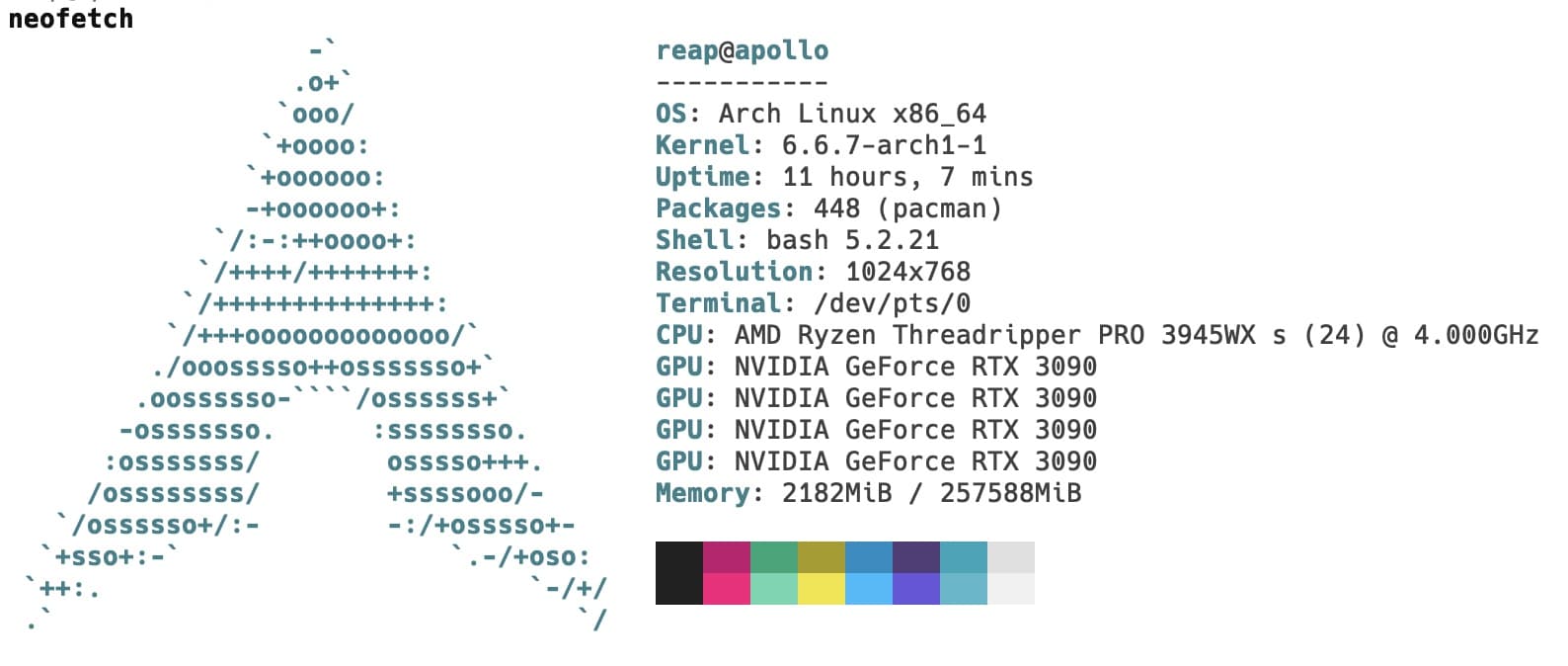
With the server built and posting, Linux comes next. In case you couldn't tell from the neofetch output, I use Arch by the way(tm). And yes, with systemd instead of an init system nobody has touched in a year. The Arch installation guide covers getting started.
2.1 Basic Input/Output System (BIOS)
First things first, boot into the BIOS to fix up some settings.
$ systemctl reboot --firmware-setup- Flash the most recent BIOS. A current firmware image avoids the bugs the vendor already fixed.
- Enable Secure Virtual Machine (SVM) Mode.
- Turn on Single Root I/O Virtualization (SR-IOV). SR-IOV shares Peripheral Component Interconnect Express (PCIE) devices across containers, virtual machines, and pods.
- Set all the PCIE lanes to v3. The motherboard has difficulty automatically figuring out the PCIE versions when using the PCIE risers. Setting it to 3.0 allows the system to boot, whereas leaving it on auto gives motherboard errors.
- Check that the RAM is working at the correct speed.
- Check that the BIOS points at the right boot drive.
Make sure the motherboard is looking for the GPU over PCIE to avoid having issues connecting to the GPU. The wrx80e has a Video Graphics Array (VGA) switch to turn off before the GPUs work correctly.
2.2 NVIDIA
Now comes everyone's favorite part, getting the NVIDIA Linux driver and Compute Unified Device Architecture (CUDA) working correctly.
2.2.1 NVIDIA drivers
The GPU drivers go in through Dynamic Kernel Module Support (DKMS), which lets the system swap between driver versions and roll back when a new driver misbehaves.
$ yay -S dkms

# Check if your system detects the GPUs
$ lspci | grep -e VGA -e 3D
$ yay -S nvidia nvidia-utils nvidia-settings
# (optional, but recommended)
$ yay -S linux-headers

# check to see if it works. you may need to reboot first
$ nvidia-smi
Sun Dec 24 04:04:49 2023
+---------------------------------------------------------------------------------------+
| NVIDIA-SMI 545.29.06              Driver Version: 545.29.06    CUDA Version: 12.3     |
|-----------------------------------------+----------------------+----------------------+
| GPU  Name                 Persistence-M | Bus-Id        Disp.A | Volatile Uncorr. ECC |
| Fan  Temp   Perf          Pwr:Usage/Cap |         Memory-Usage | GPU-Util  Compute M. |
|                                         |                      |               MIG M. |
|=========================================+======================+======================|
|   0  NVIDIA GeForce RTX 3090        On  | 00000000:01:00.0 Off |                  N/A |
|  0%   31C    P8               7W / 350W |      3MiB / 24576MiB |      0%      Default |
|                                         |                      |                  N/A |
+-----------------------------------------+----------------------+----------------------+
|   1  NVIDIA GeForce RTX 3090        On  | 00000000:2B:00.0 Off |                  N/A |
|  0%   34C    P8              10W / 350W |      3MiB / 24576MiB |      0%      Default |
|                                         |                      |                  N/A |
+-----------------------------------------+----------------------+----------------------+
|   2  NVIDIA GeForce RTX 3090        On  | 00000000:41:00.0  On |                  N/A |
|  0%   31C    P8              12W / 350W |      3MiB / 24576MiB |      0%      Default |
|                                         |                      |                  N/A |
+-----------------------------------------+----------------------+----------------------+
|   3  NVIDIA GeForce RTX 3090        On  | 00000000:61:00.0 Off |                  N/A |
|  0%   34C    P8              17W / 350W |      3MiB / 24576MiB |      0%      Default |
|                                         |                      |                  N/A |
+-----------------------------------------+----------------------+----------------------+

+---------------------------------------------------------------------------------------+
| Processes:                                                                            |
|  GPU   GI   CI        PID   Type   Process name                            GPU Memory |
|        ID   ID                                                             Usage      |
|=======================================================================================|
|  No running processes found                                                           |
+---------------------------------------------------------------------------------------+
2.2.2 CUDA
$ yay -S cuda

# update the path to add CUDA libs
$ echo 'export PATH=/opt/cuda/bin:$PATH' >> ~/.bashrc
$ echo 'export LD_LIBRARY_PATH=/opt/cuda/lib64:$LD_LIBRARY_PATH' >> ~/.bashrc

# check to see if it works. you may need to reboot first
$ nvcc --version
nvcc: NVIDIA (R) Cuda compiler driver
Copyright (c) 2005-2023 NVIDIA Corporation
Built on Fri_Nov__3_17:16:49_PDT_2023
Cuda compilation tools, release 12.3, V12.3.103
Build cuda_12.3.r12.3/compiler.33492891_0
2.2.3 nvidia-persistenced
$ sudo systemctl enable nvidia-persistenced
$ sudo systemctl start nvidia-persistenced

# check to see if the service started
$ systemctl status nvidia-persistenced
● nvidia-persistenced.service - NVIDIA Persistence Daemon
     Loaded: loaded (/usr/lib/systemd/system/nvidia-persistenced.service; enabled; preset: disabled)
     Active: active (running) since Sat 2023-12-23 09:05:34 UTC; 18h ago
    Process: 787 ExecStart=/usr/bin/nvidia-persistenced --user nvidia-persistenced (code=exited, status=0/SUCCESS)
   Main PID: 790 (nvidia-persiste)
      Tasks: 1 (limit: 308982)
     Memory: 908.0K (peak: 1.7M)
        CPU: 1.272s
     CGroup: /system.slice/nvidia-persistenced.service
             └─790 /usr/bin/nvidia-persistenced --user nvidia-persistenced

Dec 23 09:05:26 apollo systemd[1]: Starting NVIDIA Persistence Daemon...
Dec 23 09:05:26 apollo nvidia-persistenced[790]: Started (790)
Dec 23 09:05:34 apollo systemd[1]: Started NVIDIA Persistence Daemon.
2.2.4 NVLINK
If NVLINK isn't showing up then make sure connector is fully connected
$ nvidia-smi nvlink --status
GPU 0: NVIDIA GeForce RTX 3090 (UUID: GPU-...)
	 Link 0: 14.062 GB/s
	 Link 1: 14.062 GB/s
	 Link 2: 14.062 GB/s
	 Link 3: 14.062 GB/s
GPU 1: NVIDIA GeForce RTX 3090 (UUID: GPU-...)
	 Link 0: 14.062 GB/s
	 Link 1: 14.062 GB/s
	 Link 2: 14.062 GB/s
	 Link 3: 14.062 GB/s
GPU 2: NVIDIA GeForce RTX 3090 (UUID: GPU-...)
	 Link 0: 14.062 GB/s
	 Link 1: 14.062 GB/s
	 Link 2: 14.062 GB/s
	 Link 3: 14.062 GB/s
GPU 3: NVIDIA GeForce RTX 3090 (UUID: GPU-...)
	 Link 0: 14.062 GB/s
	 Link 1: 14.062 GB/s
	 Link 2: 14.062 GB/s
	 Link 3: 14.062 GB/s
$ nvidia-smi topo -m
GPU0 GPU1 GPU2 GPU3 CPU Affinity NUMA Affinity GPU NUMA ID
GPU0 X SYS SYS NV4 0-23 0 N/A
GPU1 SYS X NV4 SYS 0-23 0 N/A
GPU2 SYS NV4 X SYS 0-23 0 N/A
GPU3 NV4 SYS SYS X 0-23 0 N/A
Legend:
X = Self
SYS = Connection traversing PCIe as well as the SMP interconnect between NUMA nodes (e.g., QPI/UPI)
NODE = Connection traversing PCIe as well as the interconnect between PCIe Host Bridges within a NUMA node
PHB = Connection traversing PCIe as well as a PCIe Host Bridge (typically the CPU)
PXB = Connection traversing multiple PCIe bridges (without traversing the PCIe Host Bridge)
PIX = Connection traversing at most a single PCIe bridge
NV# = Connection traversing a bonded set of # NVLinksIf you see AER errors on boot then you need to enable the DRM kernel mode setting.
- Edit the relevant loader in
/boot/loader/entries/- Add
modeset=1 fbdev=1to the end of the options line
2.3 Power management
OK, now for the awkward math. How does a 300 W CPU and four 350 W GPUs run on a single 1600 W power supply without tripping a breaker? And that's not even counting the power the rest of the system needs!
Capping the power draw to 250 W each undervolts the GPUs, which answers the math and solves some of the heat problems at the same time. The performance hit should be small, since these workloads are mainly VRAM and Tensor core bound while the rest of the card stays idle.
To start, create a new systemd service in /etc/systemd/system/.
# nvidia-power-limitd.service
[Unit]
Description=NVIDIA settings on startup
After=syslog.target

[Service]
Type=oneshot
ExecStart=/usr/bin/nvidia-smi -pm 1
ExecStart=/usr/bin/nvidia-smi -pl 250
RemainAfterExit=no

[Install]
WantedBy=multi-user.target
And enable it so that it runs on boot.
$ sudo systemctl enable nvidia-power-limitd3 Lessons learned
- Use as much off the shelf hardware to save money.
- Think outside the box.
Fitting this into a standard PC case would have taken far more money and time to get working.
The same cheap rig the Crypto bros use saved plenty of both.
RAM goes in the top four slots first.
For 4× Scalable Link Interface (SLI) support, connect the GPUs in PCIE lanes 1, 3, 5, and 7.
-
Sometimes unplugging a cable and plugging it back in, is the correct answer.
-
Buy in bulk and bid around.
- Accept Reality
Training Meta's LLaMA took 3.7M GPU hours on A100-80GB1, training Meta's Llama 2 took 3.3M GPU hours on A100-80GB2, training TinyLlama took 3456 GPU hours on A100-40GB3, and training Microsoft's Phi 2 took 33K GPU hours on A100-80GB4. Microsoft and OpenAI's ChatGPT costs Iowa about 431 million gallons of water5.
Your not that guy pal. Trust me. Ok? Eventually you have to reach for cloud services to scale up to bigger models, faster inference for production load, and the occasional Joker moment. But an on prem system makes a wrong turn cost less. Those cloud storage fees can get pricey.
4 What comes next?
Well the system seems stable enough running ComfyUI and Jupyter Notebooks. There's more work left to do.
- Measure how much performance the power draw limit costs. How much more is there to squeeze out?
- Test the hard drives to make sure they aren't on their last leg.
- Throw everything onto a real case.
- Figure out what can actually run on here.
- Fill the three open PCIE lanes, someday.
- Docker? K3S? Quantum Containers?
Footnotes
TR-20231224 // PUBLIC RELEASE
distribution per CC BY 4.0